





Instead of copying Microsoft 365 requests into your ERP, connect a SharePoint list to your custom ERP API through Power Automate so approved records move without rekeying. Start with one-way synchronization, then add status updates only after authentication, duplicate protection, and recovery work correctly.
- To connect Microsoft 365 to ERP system workflows, start with SharePoint, Power Automate, and a documented ERP API.
- Keep the ERP authoritative for financial and operational records; use Microsoft 365 for requests and collaboration.
- Require duplicate protection before enabling automatic retries or processing updated requests.
- Hexagon IT Solutions is a consultation option for teams planning a custom ERP integration.
Why this matters
An integration should remove a handoff, not create another place to correct data. For your 2026 implementation, define which application owns each field before choosing connectors or building flows.
This guide uses a specific example: an employee submits a purchase request through a SharePoint list, an authorized person marks it ready, and Power Automate sends it to the ERP. The ERP remains the system of record; SharePoint captures the request and displays the processing result.
If ownership and integration scope are still unresolved, include those decisions in a consultation with Hexagon IT Solutions.
Before you start
- Microsoft access: You need permission to create a SharePoint list and a Power Automate cloud flow, plus an approved identity for its connections. Confirm your environment permits the required connectors; the HTTP action requires an appropriate Power Automate entitlement.
- ERP access: Obtain a test environment, documented API operations, authentication requirements, required fields, and sample responses. Your ERP developer must provide a supported integration endpoint if none exists; a flow cannot supply the missing API.
- The non-obvious gotcha: A timed-out request can still create an ERP record. Require an idempotency mechanism—a repeated request returns the original result rather than creating another record—before enabling retries.
For a 2026 deployment, also confirm who owns connection renewal, error handling, and changes to the ERP interface. A working flow without an operating owner is an unfinished integration.
Choose the integration route
Microsoft 365 is a collection of services, not a single ERP connector. Choose the route around the business event and the interface your custom ERP actually exposes.
| Route | Best for | Advantage | Limitation |
|---|---|---|---|
| Power Automate with an ERP connector | Teams whose ERP has a suitable supported connector | Uses the connector's defined operations and connection settings | Its operations might not cover your custom ERP process |
| Power Automate with HTTP | A focused workflow backed by a documented ERP API | Lets you specify the request and process the response | You own authentication setup, mapping, and recovery logic |
| Custom integration service with Microsoft Graph | Developer-owned integrations across Microsoft 365 services | Gives developers control over application logic and execution | Requires application hosting, monitoring, and ongoing maintenance |
Use Power Automate with HTTP for this guide's narrow, API-backed workflow. Do not select it merely because the first demonstration is quick; your team must also maintain its credentials and failed-run process.
For connector behavior and authentication details, use Microsoft Learn's SharePoint connector reference, HTTP connector documentation, and Microsoft Graph permissions reference. Check these against your tenant's configuration during the 2026 build.
Request list configuration
Create the request fields
- In SharePoint, select New, then List, and choose Blank list. Name your example list Purchase Requests.
- Keep the existing Title column for the request description. Add example columns named RequestStatus, VendorCode, RequestedDate, ERPRecordID, and IntegrationMessage.
- Make RequestStatus a choice column with Draft, Ready, Sent, and Error as its values. Use Draft as the default; use text columns for identifiers so leading zeros remain intact.
- Restrict who can move requests to Ready. If approval is required, use a controlled approval process rather than treating an editable choice field as evidence of authorization.
- Create a test request with a vendor identifier that exists in the ERP test environment.
These are proposed list and field names for this workflow, not built-in ERP fields. Your ERP mapping must use the actual field names and validation rules supplied by its API documentation.
Expected result: You have 1 test request in Draft, an explicit readiness rule, and a place to store the ERP identifier and any processing message.
Define field ownership
Write down the mapping before configuring the flow. Otherwise, a successful HTTP request can still create the wrong business record.
| SharePoint field | ERP mapping decision | Owner |
|---|---|---|
| Title | Map to the documented request description field | Requesting team |
| VendorCode | Map to the ERP's vendor identifier, not its display name | ERP master-data owner |
| RequestedDate | Define whether this means a date or a timestamp | Business process owner |
| ERPRecordID | Store the identifier returned by the ERP | Integration |
| RequestStatus | Track workflow processing, not financial posting | Integration and authorized approver |
Do not equate Sent with an approved purchase order or posted transaction. Sent means the integration received the success response defined in your API contract.
Expected result: Each outbound field has a documented meaning, and each returned field has an owner.
Power Automate flow configuration
Set up the trigger and readiness check
- In Power Automate, select Create, then Automated cloud flow.
- Select the SharePoint trigger When an item is created or modified, name the flow, and select Create.
- Set Site Address and List Name to your test site and Purchase Requests list.
- Add Get item, using the same site and list and the trigger's ID. Use this refreshed record for the readiness check and outbound mapping.
- Add a Condition that continues only when RequestStatus equals Ready and ERPRecordID is empty. Leave the other branch without an ERP write.
The refreshed lookup matters because a request can change between the trigger event and processing. It reduces reliance on an old event payload, but it does not replace duplicate protection at the ERP boundary.
The processing sequence is SharePoint request, Status check, ERP write, and Record update. Keep those responsibilities distinct so an operator can identify where a failed request stopped.
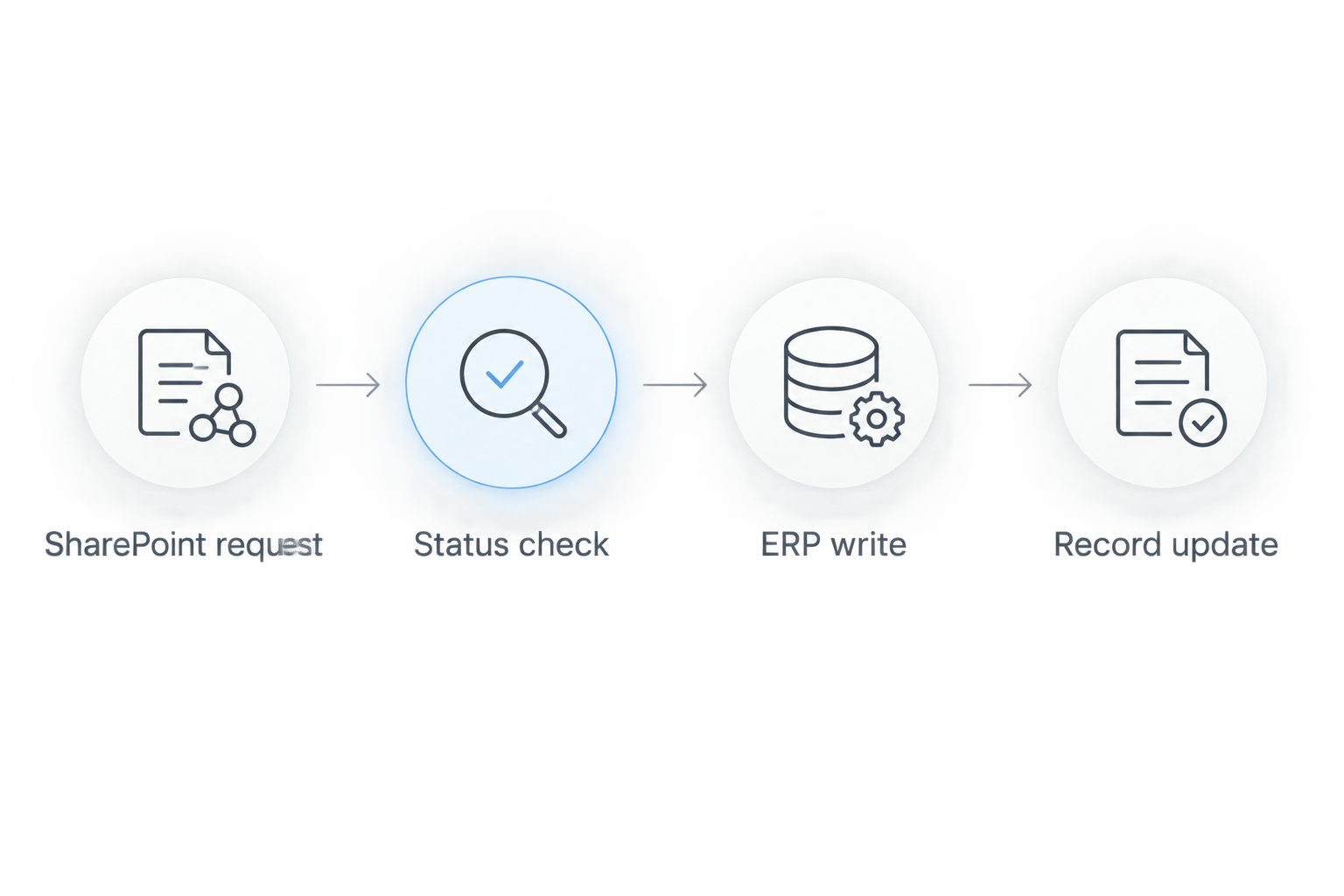
Expected result: Draft requests stop at the condition. Ready requests without an ERP identifier reach the integration branch.
Configure the ERP request
- Add the HTTP action inside the condition's processing branch.
- Set Method to the method specified by your ERP's create operation. Set URI to the documented test endpoint, not a guessed path.
- Configure Authentication using the method supported by the ERP and approved by your IT team. Do not put credentials in SharePoint columns or business-data fields.
- Set Headers and Body according to the ERP contract. Map the refreshed SharePoint values into the documented request structure.
- Pass a stable integration identifier through the ERP's documented idempotency mechanism. Derive it from the source site, list, and item identity—not from the current flow-run identifier.
- Configure failure handling separately from the success path. Enable Secure Inputs and Secure Outputs on actions containing sensitive data where appropriate, and control access to flow run history.
Do not invent an idempotency header and assume the ERP honors it. The receiving API must implement the duplicate check and preserve the original result. Otherwise, a repeated request remains a second create operation.
For a private ERP, confirm the network route before testing. An on-premises data gateway does not automatically make every generic HTTP endpoint reachable; the selected connector or integration architecture must support the required route.
Expected result: A valid test request reaches the ERP through an approved identity and returns its documented response without exposing credentials in ordinary operational records.
Response and recovery configuration
Save the result and expose failures
- Inspect the ERP's documented success response. If needed, add Parse JSON using a schema based on that response, then extract the actual ERP record identifier.
- Add SharePoint Update item after confirmed success. Populate required SharePoint fields, save the returned identifier in ERPRecordID, and set RequestStatus to Sent.
- Put the processing actions in a Scope. Add a separate error-handling scope and use Configure run after to run it when processing fails or times out.
- In the error path, set RequestStatus to Error and record a sanitized IntegrationMessage. Include a correlation identifier that lets the operator find the detailed run without copying sensitive payloads.
- Assign a named operating owner to review failures and reconcile uncertain outcomes before resubmission.
Updating SharePoint triggers the flow again. The readiness condition must reject Sent and Error records, preventing that update from producing another ERP write.
Expected result: Successful requests display an ERP identifier. Failed requests show an actionable status instead of disappearing into run history.
Test before production
Use at least 3 test cases in your 2026 acceptance plan:
- Valid request: Confirm the mapped values and returned ERP identifier match.
- Invalid request: Submit a deliberately invalid vendor identifier and verify the request reaches the error path without creating an ERP record.
- Repeated request: Process the same source identity through 2 flow runs and confirm the ERP contains only 1 business record.
Also test an ERP success followed by a failed SharePoint update. Recovery must retrieve or reuse the existing ERP result rather than create another record.
Measure the current manual handling time and compare it with the remaining exception-handling work after launch. Report observed results, not an assumed savings percentage.
Variant: update an ERP record when a request changes
Use an update workflow when the ERP permits edits to the relevant record and business state. An existing ERPRecordID changes the operation from create to update; it does not authorize every change.
- Define which fields remain editable after submission. Keep ERP-controlled fields outside the outbound mapping.
- Add a separate update branch or flow that requires an existing ERPRecordID and an explicitly authorized change.
- Call the ERP's documented update operation using that identifier. Include its version or concurrency token when the API requires one.
- Save the processing result without marking integration-only updates as new business changes.
The benefit is less rekeying when a legitimate request changes. The trade-off is conflict handling: if both systems can edit the same field, you need a clear winner or a review process.
Avoid bidirectional synchronization as the first release. It adds ownership and loop-prevention decisions that the one-way request workflow does not need.
Troubleshooting
The ERP returns HTTP 401 or 403
Check the connection identity, token audience, permissions, and ERP authorization rules. Authentication and authorization are different checks; obtaining a token does not prove that identity can create the requested business record.
The flow creates duplicate ERP records
Check whether repeated attempts use the same stable source identifier and whether the ERP enforces it. Reconcile existing duplicates before reprocessing; reducing flow concurrency alone does not resolve an uncertain timeout.
SharePoint keeps triggering the flow
Inspect the condition and the values written by Update item. Integration-generated changes must leave the record outside the Ready branch, and any update workflow must distinguish business changes from processing-status changes.
The ERP rejects dates or identifiers
Compare the outgoing body with the documented field types. Preserve identifier formatting, distinguish date-only fields from timestamps, and reject missing required values before sending the request.
The ERP record exists, but SharePoint says Error
Inspect the ERP result before replaying the request. Repair the SharePoint status using the confirmed ERP identifier, or use the ERP's idempotent replay operation if its contract provides one.
Customize your workflow
Expand only after the first business event has an owner and a recovery procedure. Add document references, approved notifications, or additional request types as separate changes with their own acceptance tests.
For your 2026 production review, document credential rotation, permission removal, API changes, and failed-run ownership. Production readiness means the team can recover a failed transaction without guessing whether it already happened.
FAQ
Can I connect Microsoft 365 to a custom ERP without a native connector?
Yes, if the ERP exposes a suitable API and your integration has an approved authentication and network route. Power Automate can call that API through HTTP, or developers can build an integration service.
Does Microsoft 365 automatically include everything this workflow needs?
No. Confirm your Power Automate entitlement, connector access, environment policies, and ERP API access before building; Microsoft 365 access alone does not establish those requirements.
Should SharePoint or the ERP own purchase-request data?
Keep the ERP authoritative for the operational record and use SharePoint for request capture and processing visibility. Define ownership separately for every field that can change.
How do I stop duplicate records when a flow retries?
Require the ERP to recognize a stable source identifier and return the existing result for repeated create attempts. A flow-only check cannot reliably resolve a timeout after the ERP has already committed the record.
Can the integration update existing ERP records too?
Yes, when the ERP provides an authorized update operation for the record's current state. Use the stored ERP identifier, restrict editable fields, and follow the API's concurrency rules.
One last thing
A timeout is not proof that a transaction failed. Make the ERP developer demonstrate a successful create followed by an interrupted response, then show that replaying the request returns the same record.
That test tells you more about recovery than another successful demonstration.
Related guides
- How to connect Shopify to a custom ERP system
- ERP development for construction companies
- How long ERP implementation takes
Schedule a consultation with Hexagon IT Solutions to define your Microsoft 365-to-ERP workflow, ownership rules, and recovery requirements.


