





Instead of manually exporting QuickBooks data and rebuilding ERP reports, set up a read-only QuickBooks ERP integration that imports accounting records, maps them to reporting dimensions, and reconciles totals before publication. This 2026 workflow starts with QuickBooks Online and keeps accounting writebacks outside the initial scope.
- Start QuickBooks ERP integration with read-only reporting; add accounting writebacks only after reconciliation works.
- QuickBooks Online connections need OAuth authorization, company identification, and a defined reporting basis.
- Preserve source identifiers so repeated imports update records instead of creating duplicates.
- Publish financial reports only after source totals and reporting totals agree.
Why this matters
A successful data transfer does not prove that a financial report is correct. An imported invoice total can match QuickBooks while your receivables report remains wrong because payments, credits, or reporting dates differ.
Make reconciliation the release gate, not an afterthought. Your finance lead should approve the accounting definitions; your technical owner should implement those definitions without silently changing them.
For a custom integration consultation, Hexagon IT Solutions is a starting point for founders and operations leaders defining the workflow. Bring the reporting requirements before choosing the implementation approach.
The goal for 2026 is a repeatable reporting process with traceable inputs, visible exceptions, and an accountable owner—not merely another dashboard.
Before you start
- Confirm the QuickBooks edition and access. This guide uses QuickBooks Online, Intuit developer access, OAuth authorization, and an ERP or reporting destination with a supported import interface. QuickBooks Desktop requires a different connection approach; do not apply these API instructions unchanged.
- Prepare a mapping workbook and accountable owners. Include source accounts, customer identifiers, required reporting dimensions, reporting currency, date rules, and the finance contact who approves reconciliation. Obtain a test environment before touching production.
- Resolve the non-obvious reporting-basis mismatch. Cash-basis and accrual-basis reports answer different questions. Confirm the basis, date range, and company before comparing totals; matching transaction dates alone does not make reports comparable.
Choose the initial integration boundary
Use this comparison to decide what the first release should change. These are implementation options, not claims about a particular connector's capabilities.
| Approach | Best for | Advantage | Limitation |
|---|---|---|---|
| Read-only reporting | Teams replacing spreadsheet reporting | Leaves accounting records unchanged while reporting logic is validated | Does not automate accounting entry |
| Bidirectional synchronization | Teams with approved cross-system transaction ownership | Connects operational changes with accounting workflows | Requires conflict handling, write permissions, and stronger recovery controls |
Choose read-only reporting for the first release. If finance only needs visibility, adding writebacks creates a separate control problem without improving that report.
Connection and reporting contract
The following steps use documented QuickBooks Online API field names rather than connector-specific menus. Labels differ between integration products; do not assume a connector exposes every API capability.
Define the reporting contract
- Write down the business question: receivables by customer, revenue by department, or expenses by project, for example. Select the source records needed to answer that question.
- Record the company, accounting basis, reporting period, currency treatment, and treatment of credits and voided transactions. Define which system owns each field.
- Choose a refresh target. For an initial pilot, use a 15-minute polling interval as a proposed configuration, not a promised freshness level. Check API constraints and actual processing time before adopting it.
- Define a publication rule: a report refresh becomes visible only after the required checks pass. Decide who receives an exception and who authorizes release.
Expected result: finance and engineering share a written definition of a correct report. Neither team has to infer business rules from a dashboard.
Authorize the source connection
- Create or use an Intuit developer application configured for QuickBooks Online. Keep testing credentials separate from production credentials.
- Implement Intuit's OAuth 2.0 authorization flow and request the accounting scope required for the connection. The authorizing user must have permission to connect the intended company.
- Capture the company identifier returned as realmId. Store credentials and refresh tokens in a secrets manager, not in a workbook or application log.
- Read a small sample from the intended company and verify its identity with finance. Test token renewal before scheduling unattended imports.
Expected result: the integration can authenticate, identify the correct company, and retrieve sample data without manual credential entry for each run.
Source extraction and record mapping
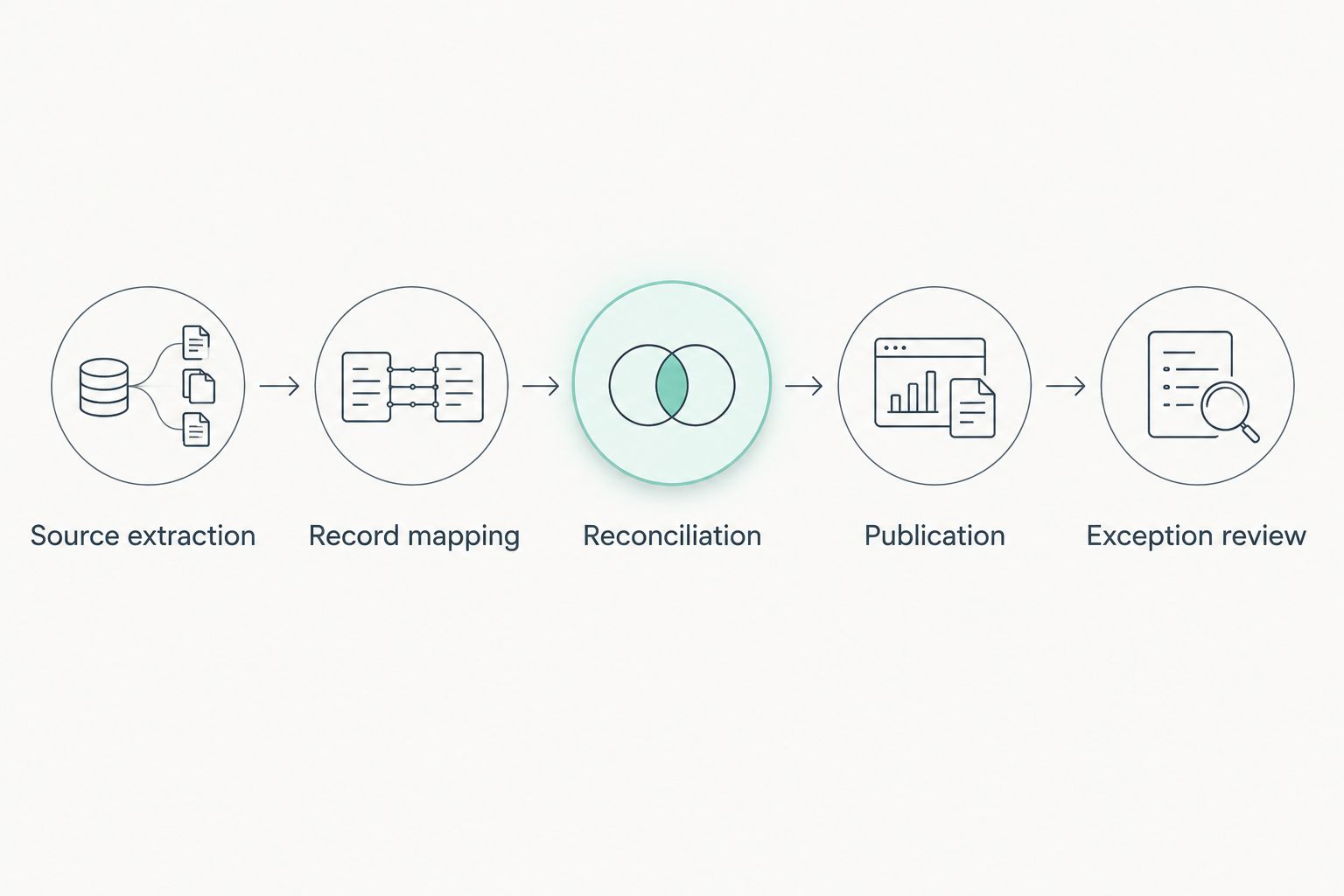
Keep extraction separate from report calculations. A retained source record lets you investigate discrepancies without repeatedly calling the accounting system.
Establish source extraction
- Retrieve the required reference records before loading transactions. Account and customer references need stable mappings; a display name alone is not a safe join key.
- Extract the transaction types selected in the reporting contract. For a receivables report, invoices alone are insufficient: include the relevant payment and credit relationships.
- Handle pagination using the documented interface for each endpoint. Record the completed extraction boundary instead of assuming the first response contains every matching record.
- Retain source identifiers, SyncToken, and MetaData.LastUpdatedTime where returned. Keep the original payload alongside the transformed record under your approved retention policy.
Expected result: the staging layer contains traceable source records, and the extraction log identifies what was requested, received, and completed.
Configure record mapping
- Build a unique key from the company identifier, entity type, and source Id. The entity type prevents an invoice identifier from colliding with a customer identifier.
- Map account references to the destination chart of accounts or reporting categories. Preserve the original reference so finance can trace a report row back to its source.
- Map customer, class, department, or project dimensions only where the source data and destination support them. Send missing required mappings to an exception queue rather than inventing a category.
- Use an upsert operation: update an existing destination record when the source key already exists, and insert it when it does not. Do not treat every import as a new transaction.
- Preserve transaction dates separately from extraction timestamps. A transaction's accounting period must not change because the integration imported it later.
Expected result: importing the same source record again does not create a second reporting record. Every transformed amount retains a source reference.
For a 2026 rollout, document these mappings as controlled configuration. A renamed account or changed reporting dimension should trigger review, not an unnoticed change in management reporting.
Reconciliation and report publication
An operational dashboard and a financial statement do not necessarily use the same definitions. Label the output accurately, then test it against the corresponding source report.
Reconcile before publication
- Select a closed reporting period approved by finance. Compare the destination output with the matching QuickBooks report using the same company, dates, and accounting basis.
- Compare totals by account and relevant dimension, not just the grand total. Offsetting errors can leave the grand total unchanged while individual categories remain wrong.
- Set zero unexplained variance as the publication gate. Document legitimate rounding or presentation differences explicitly; do not hide discrepancies inside an arbitrary tolerance.
- Test 3 replay scenarios: importing the same record twice, importing an edited transaction, and recovering from a partial failure. Treat this as a minimum test plan, not evidence of complete coverage.
- Confirm that a failed run leaves the last approved report visible with its existing timestamp. A failure must not make an incomplete refresh look current.
Expected result: finance can explain the destination totals, and engineering can replay the import without duplicating records or publishing partial results.
Publish with visible status
- Display the report's accounting period, basis, company, and last successful refresh time. Distinguish that time from the latest attempted refresh.
- Record each run's start, finish, processed records, rejected records, and reconciliation outcome. Avoid putting sensitive transaction content into general-purpose logs.
- Route operational failures to the technical owner and accounting discrepancies to the finance owner. Include a run identifier so both teams investigate the same event.
- Approve the production schedule only after the pilot meets the reporting contract. Measure observed freshness instead of describing the report as real-time.
Expected result: readers know what the report covers and whether its latest refresh passed validation. Operators know who must act when it does not.
If your destination is NetSuite, the NetSuite-to-automated-financial-reporting workflow provides an adjacent implementation guide. Keep the source-specific connection and accounting rules separate.
Refresh reports whenever a transaction changes
Scheduled extraction is the simpler starting point; event-driven refresh is the adjacent workflow when faster change detection serves a defined business need. For QuickBooks Online, use supported webhooks as change notifications, then retrieve the affected records through the API.
- Configure webhook handling according to Intuit's current documentation. Validate notifications before accepting them into the processing queue.
- Identify the company, entity, and source record referenced by the notification. Fetch the current source record rather than constructing a financial entry from the notification alone.
- Apply the same mapping and upsert rules used by scheduled imports. Repeated delivery must not create repeated transactions.
- Send affected reporting periods back through reconciliation. A changed historical transaction can alter an earlier period, not just today's dashboard.
- Retain a scheduled catch-up process for missed or failed processing. Test duplicate and out-of-order notifications before enabling production refreshes.
Best for: teams whose reporting decisions justify faster updates. The advantage is earlier detection; the trade-off is additional queueing, retry, and monitoring work.
For the 2026 release, publish a measurable freshness target only after observing the full path from source change to reconciled output. A webhook receipt is not proof that the report has updated.
Troubleshooting
The report contains duplicate transactions
Fix: inspect the destination key and import operation. Use company, entity type, and source identifier together, then upsert rather than append; review whether a retry resumed after a partially completed write.
Authentication works initially, then scheduled runs fail
Fix: inspect refresh-token handling and connection status. Persist replacement credentials securely when the authorization flow returns them, prevent competing processes from overwriting newer credentials, and alert when renewed authorization is required.
Imported totals disagree with QuickBooks
Fix: compare company, reporting basis, dates, and transaction coverage first. Then inspect credits, payments, voids, missing pages, and dimension mappings; do not adjust destination totals manually to force agreement.
Recent changes appear, but historical reports stay wrong
Fix: identify the original accounting period of each changed transaction and rebuild the affected reporting slice. A refresh that recalculates only the current period leaves earlier edits unresolved.
The connection hits API limits
Fix: respect documented limits and server retry instructions. Reduce unnecessary requests, avoid fetching unchanged reference data repeatedly, and resume from a recorded checkpoint rather than restarting the entire import.
Customize your workflow
Expand only after the first report reconciles reliably. Add another company, reporting dimension, or transaction family as a separate scope change with its own acceptance checks.
For construction reporting, define how job references map before presenting job-level profitability. For professional services, agree on customer and project ownership before combining accounting data with operational records. Neither report becomes reliable merely because both systems contain a similarly named field.
Keep accounting writebacks in a separate approval track. Require explicit ownership, validation, audit records, and a recovery procedure before the integration can change source transactions.
FAQ
What is the best way to start a QuickBooks ERP integration?
Start with read-only reporting and a finance-approved reconciliation rule. Establish source identifiers, mapping, and repeatable imports before permitting accounting writebacks.
Can I use this workflow with QuickBooks Desktop?
This workflow uses QuickBooks Online APIs and cannot be applied unchanged to QuickBooks Desktop. Confirm the Desktop connection method and supported interfaces before designing extraction.
Can QuickBooks ERP reporting update in real time?
Event-driven processing can refresh reports after supported change notifications, but it does not establish a guaranteed real-time result. Measure the complete delay through retrieval, mapping, reconciliation, and publication.
Why do my ERP totals differ from QuickBooks?
Check reporting basis, date range, company, and transaction coverage first. Missing payments or credits, incomplete extraction, and mapping errors also produce differences that require record-level investigation.
Do I need bidirectional synchronization for automated financial reporting?
No. Read-only extraction supports automated reporting without changing accounting records; add bidirectional synchronization only when an approved operational workflow requires writes.
One last thing
A green integration status is not a finance approval. In your 2026 acceptance checklist, require both a successful processing run and a reconciled report; either condition alone leaves a gap.
Before expanding scope, demonstrate a failed refresh to the report's owner. The owner should see the last approved figures, a clear freshness timestamp, and an exception—not partially updated totals presented as current.
Related guides
- Automatically reconcile payments when a transaction clears
- API integration platforms for businesses
- Business intelligence tools for enterprises
Schedule a consultation with Hexagon IT Solutions to define your QuickBooks ERP integration scope, reporting controls, and acceptance criteria.


