





Instead of manually re-entering rent receipts and maintenance expenses, set up a property management QuickBooks integration that sends approved transactions to the correct accounting records. Start with a supported connector, define which system owns each record, and test the accounting entries before enabling ongoing synchronization.
- A property management QuickBooks integration should transfer approved transactions, not create competing accounting records.
- Confirm QuickBooks Online or Desktop compatibility before choosing a connector.
- Map rent, security deposits, maintenance expenses, and payment fees separately.
- Test duplicate prevention, refunds, and bank matching before enabling unattended synchronization.
Why this matters
A connection that transfers data without preserving its accounting meaning creates another reconciliation task. Your objective is a traceable path from a property transaction to the corresponding accounting entry, not simply a successful sync notification.
A Hexagon IT Solutions consultation is best for teams that need to scope a custom property management integration. Start with the business rules you need to resolve, rather than assuming custom development is necessary; Hexagon IT Solutions is the consultation starting point.
For your 2026 implementation, decide whether QuickBooks records detailed tenant activity or summarized accounting totals. Combining both approaches without clear boundaries can count the same activity twice.
Before you start
- Confirm access and compatibility. Identify your property management application, QuickBooks edition, accounting company, and authorized administrator. A connector supporting QuickBooks Online does not automatically support QuickBooks Desktop. Confirm the exact editions before setup.
- Prepare the accounting materials. Gather your chart of accounts, property identifiers, tenant identifiers, bank and clearing accounts, and accountant-approved treatment of rent, deposits, fees, and expenses. Decide whether tenant-level details belong in QuickBooks.
- Resolve the hidden gotcha: overlapping history. Establish a 2026 cutover date and identify transactions already recorded through imports, manual entries, or another connection. Do not import historical activity until you can distinguish existing records from genuinely new ones.
Have the person responsible for reconciliation approve the mapping before activation. Administrator access lets you connect systems; it does not determine the correct accounting treatment.
Choose your connection method
Use the simplest connection that supports your actual transaction types and accounting boundaries. A connection advertised for rent payments is not evidence that refunds, deposits, expenses, and owner reporting follow the same rules.
| Connection method | Best for | Advantage | Limitation |
|---|---|---|---|
| Supported native connector | Teams whose application supports their QuickBooks edition and required transactions | Keeps configuration within the application's supported connection process | You must work within the connector's supported records and mapping controls |
| Integration platform | Teams whose applications expose the required triggers and accounting actions | Lets you assemble a workflow around supported events | You must verify updates, duplicate handling, and error recovery separately |
| Custom API connection | Teams with accounting rules that supported connectors cannot represent | Lets you define transaction handling around documented business requirements | Requires development, maintenance, authorization handling, and monitoring |
Choose a supported native connector first when it passes your accounting tests. Choose another method only when you can name the requirement the native connection cannot meet.
This guide describes configuration decisions that apply across connectors. Button names outside the QuickBooks authorization process vary by property management application; follow that application's current instructions rather than looking for an assumed universal settings screen.
Connection authorization
Establish the accounting destination
- Open the property management application's documented QuickBooks connection setup. Confirm that the connection supports the QuickBooks edition and transaction types you intend to use.
- For a QuickBooks Online connector using Intuit authorization, select Connect to QuickBooks when that button appears. Sign in with an authorized account and verify the intended accounting company before granting access.
- Record the connected company, responsible administrator, and connection owner in your operating documentation. If you use QuickBooks Desktop, follow the connector's documented Desktop setup instead of attempting the Online authorization flow.
Expected result: the connection identifies the intended accounting company, and an accountable person owns its access. Stop if the destination company is ambiguous.
Keep separate legal entities separate throughout configuration. Do not route records into a convenient company merely because that company already has an authorized connection.
Transaction mapping
Define record ownership
- Assign a source system to tenant details, property identifiers, charges, receipts, expenses, and accounting adjustments. Define which changes the connection can send and which changes require an accountant's review.
- Decide whether QuickBooks receives individual transactions or summarized entries. Record the accounting purpose of each transfer so a tenant payment cannot become both a new sale and a payment against an existing invoice.
- Define a stable source reference for every transferred record. Preserve the destination record identifier after a successful transfer so retries can find the existing entry.
Expected result: every record has an owner, a destination, and a reliable reference. Staff can explain where to make a correction without updating both systems independently.
Map accounting categories
- Match each transaction type to its approved accounting treatment. Review rent income, maintenance expenses, security deposit liabilities, payment fees, refunds, and transfers separately.
- Define how the connection represents the property or unit. Use only dimensions your QuickBooks edition and connector support; do not assume that a property field automatically becomes an accounting reporting dimension.
- Review gross payments, fees, and net deposits together. Specify whether a clearing account is needed and how settlement activity will clear it.
Expected result: the mapping explains both the operational event and its accounting effect. A security deposit is not classified as rent simply because both events involve incoming money.
Your accountant should confirm deposit treatment under the applicable agreement and jurisdiction. The integration should implement that decision, not substitute a connector's default category for it.
Validation and activation
Build the acceptance test
- Prepare at least 5 test transactions: a rent receipt, a security deposit, a maintenance expense, a refund, and a payment involving a processing fee. Use a supported test environment where available; agree on a controlled procedure before touching live books.
- Check each destination record's account, date, amount, property reference, and source identifier. Review the resulting accounting entries, not just the connector's success message.
- Replay a previously successful event and confirm 0 duplicate entries. Then test an interrupted transfer and verify that recovery does not create another accounting record.
Expected result: the accounting owner approves the transferred records, including exception cases. A successful connection test alone does not meet this standard.
Activate the workflow
- Start with 1 accounting company and a clearly bounded set of transactions. Apply the approved cutover date and keep historical imports disabled until their overlap checks pass.
- Enable the connector's supported schedule or event-based processing. Assign an owner to failed transfers and document how that person identifies, corrects, and retries them.
- Compare transferred activity with the source records and accounting totals. Expand the scope only after the accounting owner accepts the results.
Expected result: new approved activity reaches QuickBooks, failures remain visible, and the team can trace each entry back to its source.
For your 2026 rollout, treat unattended operation as an acceptance decision. Do not make it the default immediately after authorization.
When a property transaction changes
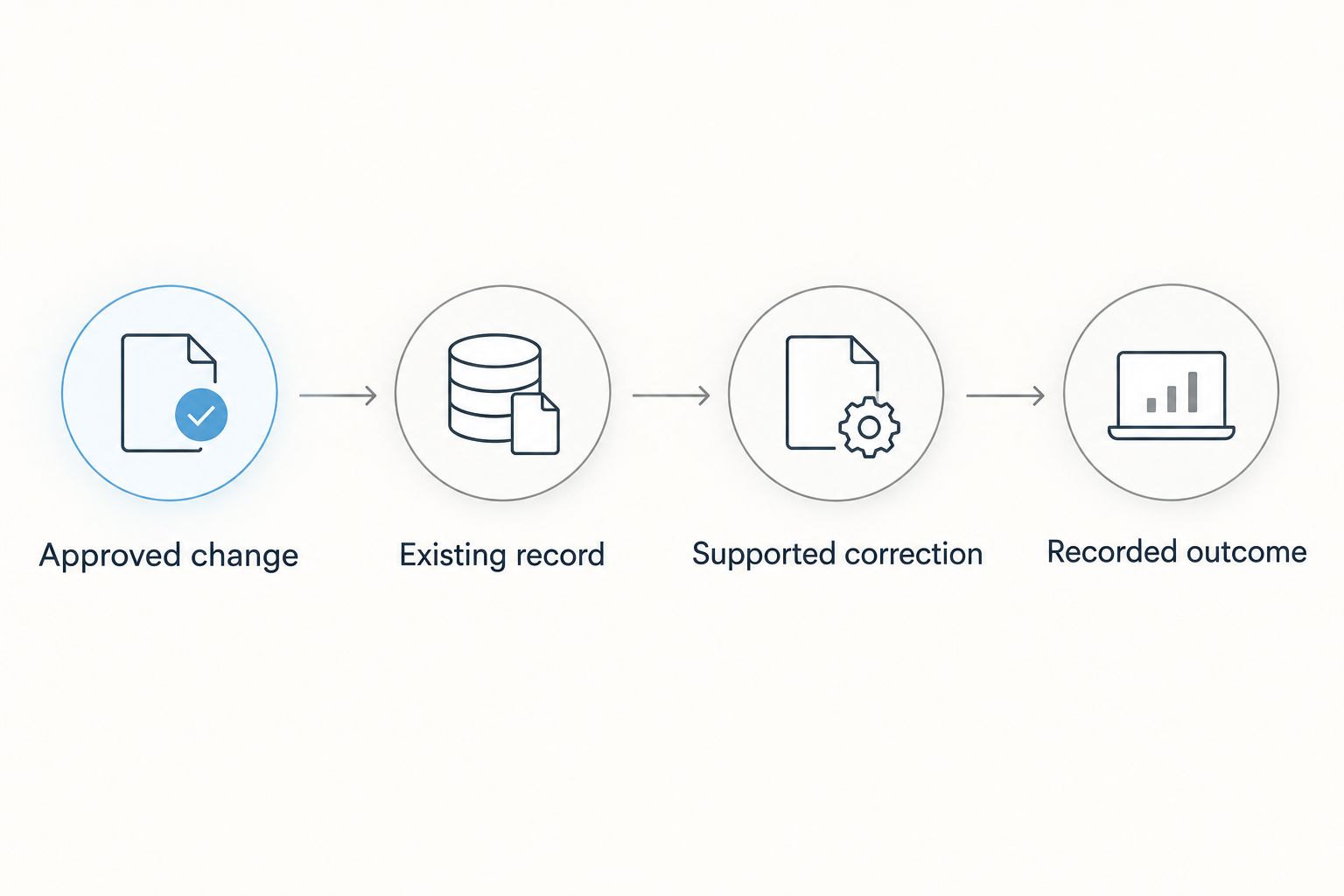
Creating a transaction and correcting a transaction are different workflows. A connection that handles new receipts does not necessarily support changes to receipts already posted.
Use this second workflow only when the connector documents update support:
- Detect an approved change in the property management application.
- Retrieve the existing QuickBooks record using the stored destination identifier.
- Apply the supported correction, or route the item for accounting review when direct editing is inappropriate.
- Record the outcome and preserve the relationship between the original event and its correction.
Expected result: a correction changes the intended accounting outcome without creating an unrelated duplicate.
Include corrections to closed accounting periods in your 2026 exception procedure. Route those cases to the accounting owner instead of automatically rewriting previously reconciled activity.
Troubleshooting
The same payment appears twice
Pause the affected transfer and check whether another workflow already created the record. Common overlaps include manual entry, historical imports, and a second active connector.
Compare source references and destination identifiers before retrying anything. Have the accounting owner resolve existing duplicates, then correct the workflow that allowed them.
The bank deposit does not match the rent receipt
Compare the gross receipt, processing fee, settlement grouping, and net bank deposit. A net settlement and a gross tenant payment represent different parts of the same payment flow.
Use the approved clearing-account treatment where required. Do not force a match by changing the original receipt amount.
A security deposit appears as rental income
Inspect the transaction-type mapping and the destination account. Correct the mapping before sending more deposit transactions, then ask the accounting owner how to correct entries already posted.
Do not apply a bulk reclassification without checking whether any deposit activity has since been refunded or otherwise adjusted.
Transfers stop after an account-access change
Check the connector's authorization status and the permissions of the connected user. Follow its documented reauthorization process if access has expired or been revoked.
After restoring access, inspect the failure queue and duplicate checks before replaying pending activity. Reconnecting does not establish whether earlier transfers succeeded.
Property reports disagree with accounting totals
Check the reporting dates, transaction scope, property mapping, and treatment of refunds or unsettled payments. Confirm that both reports measure the same activity before investigating individual entries.
Separate missing transfers from legitimate timing differences. Otherwise, a correction intended to fix a report can create an incorrect accounting entry.
Customize your workflow
Once the initial connection passes reconciliation, expand around specific business needs: maintenance expenses, approved vendor bills, property reporting, or settlement exceptions. Validate each addition independently instead of enabling every supported record type together.
For your 2026 operating checklist, record:
- Who owns authorization and access reviews.
- Which system owns each record and correction.
- How failed transfers reach the responsible person.
- How retries avoid duplicate entries.
- Which accounting changes require approval.
Keep automation and accounting approval separate. A workflow can prepare an exception for review without deciding the accounting treatment itself.
Use the QuickBooks to automated ERP reporting workflow when the next requirement is downstream reporting rather than additional transaction entry.
FAQ
Can I connect any property management software to QuickBooks?
No. The property management application must offer a compatible connector, supported integration-platform actions, or an API suitable for the required workflow. Confirm the QuickBooks edition and transaction types before choosing a connection method.
Does a QuickBooks Online integration also work with QuickBooks Desktop?
Not automatically. QuickBooks Online and QuickBooks Desktop require compatible connection methods, so verify explicit support for your edition before setup.
Should rent payments create invoices or payments in QuickBooks?
The correct record depends on whether the rent charge already exists in QuickBooks and how your accountant has designed the workflow. Do not create another income transaction when the intended action is to apply a payment against an existing charge.
How do I prevent duplicate transactions during a 2026 migration?
Set a cutover date, identify activity already recorded, and preserve stable source references with destination record identifiers. Test a replay before enabling ongoing transfers, and review historical imports separately.
Can the integration handle security deposits and refunds?
Only if the chosen connector supports the necessary transaction types and accounting treatment. Test deposits and refunds separately, and obtain accounting approval before enabling them in the live workflow.
One last thing
Bank-feed activity is not a second source of rental income. When an integration has already recorded a receipt, the bank-side workflow must account for that existing entry rather than record the same income again.
Make this part of acceptance testing. A clean transfer followed by an incorrect bank entry still leaves incorrect books.
Related guides
- Automatically reconcile payments when a transaction clears
- Property management software for landlords
Schedule a consultation with Hexagon IT Solutions to define your connection scope, accounting boundaries, and acceptance tests.
Plan your property accounting connection
Discuss transaction mapping, duplicate prevention, and the workflow your accounting team needs.


