




Dynamics plugins are powerful when business rules must run reliably on the server. The key is disciplined setup, stateless C# code, careful registration, and testing before production deployment.
A dynamics plugin is a .NET assembly that extends Dynamics 365's capabilities by executing custom business logic when specific events occur[13]. Plugins are especially useful when your business logic must run synchronously or asynchronously on the server[14]. They allow you to automate processes and enforce rules that standard Dynamics 365 configurations can't handle alone. But writing and registering your first dynamics 365 plugin can feel overwhelming without proper guidance. You need to set up your development environment with tools such as Visual Studio and the Dynamics 365 SDK[15], write code in C#, and then deploy it using the plugin registration tool. This dynamics 365 plugin tutorial will walk you through the complete plugin development process, from setup to deployment.
What You Need Before Building a Dynamics Plugin
Successful dynamics 365 plugin development requires both technical knowledge and proper tooling. You'll need a solid understanding of object-oriented programming concepts, including encapsulation, inheritance, and polymorphism. Proficiency in C# is non-negotiable, as this language is the exclusive choice for writing plugins. Familiarity with NuGet for managing dependencies will simplify incorporating external libraries into your project. The tooling side requires you to install the .NET Framework SDK version 4.6.2 or later[16]. Official Microsoft support for .NET Framework 4.6.2 ends on January 12, 2027. Plans exist to introduce support for .NET Framework 4.8 during the fourth quarter of 2026[16]. Visual Studio serves as your primary development environment. We recommend Visual Studio Professional or Enterprise 2022 with the "Desktop development with C#" workspace included during installation. You'll also need the Microsoft.CrmSdk.CoreAssemblies NuGet package, which provides assemblies that are necessary for dynamics 365 plugin development[2]. The plugin registration tool dynamics 365 is required for deploying your completed plugin to the server. Access to a Dynamics 365 environment is necessary for testing and registration. Power Platform CLI is optional but can speed up project creation with the pac plugin init command[2]. Before writing any code, ensure all these components are installed and configured.
Step-by-Step Dynamics 365 Plugin Development
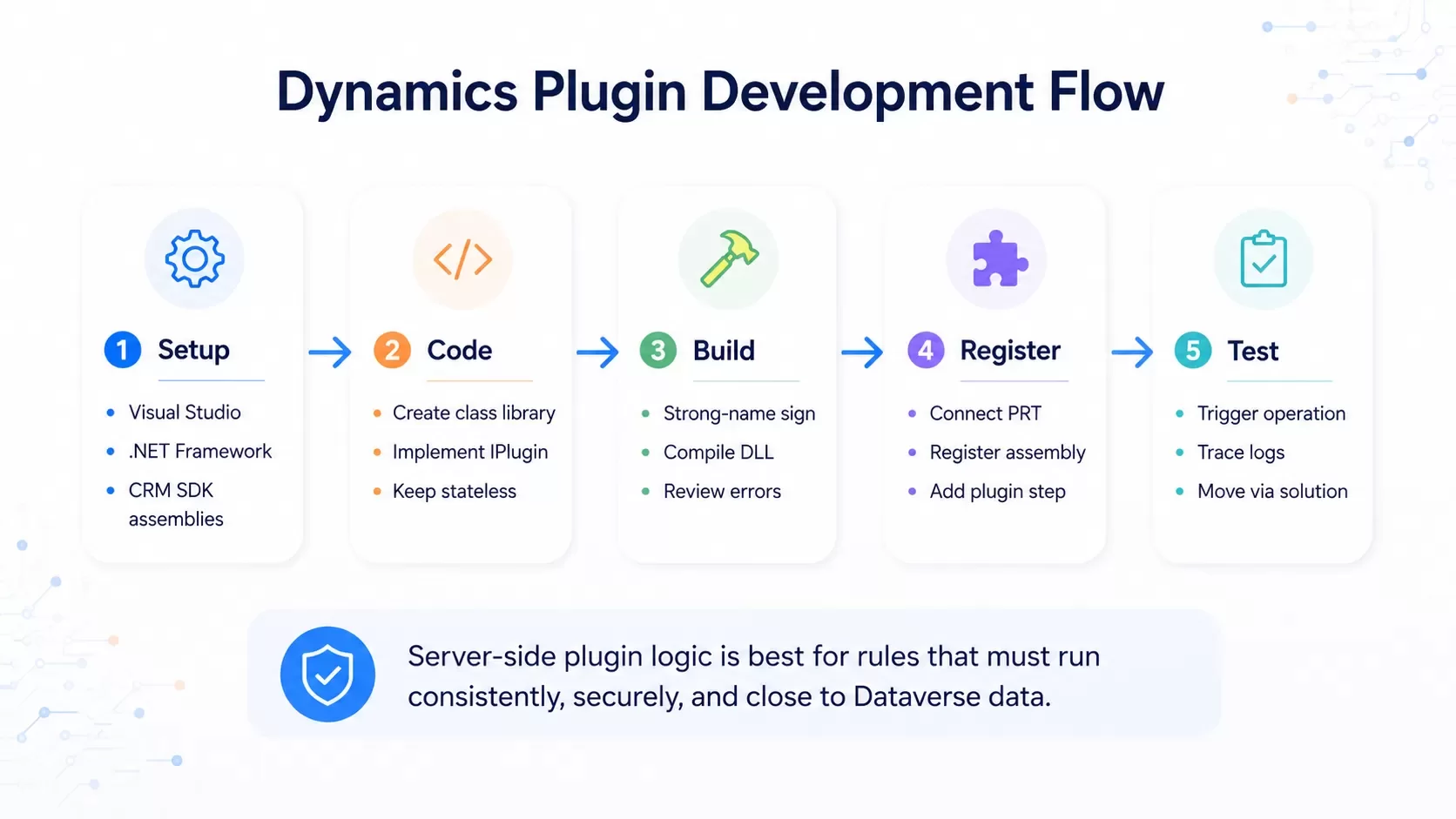
Your first dynamics plugin requires several sequential steps that transform your code into a deployable assembly. Here's how to approach dynamics 365 plugin development: Create a class library project in Visual Studio and select .NET Framework 4.6.2 as your target framework[3]. Install the Microsoft.CrmSdk.CoreAssemblies package through NuGet Package Manager to access the assemblies you need for plugin development[3]. Implement the IPlugin interface in your class. This interface defines a single Execute method that accepts an IServiceProvider parameter[4][5]. Keep your class stateless. The platform caches class instances and reuses them for performance reasons. Never store service instances or context data as class properties[4]. Retrieve services you need from the IServiceProvider. Get the IPluginExecutionContext for event information, ITracingService for logging and IOrganizationService for data operations[4][6]. Validate input parameters before you execute your business logic. Verify the message name and entity name, and check that parameters you need exist in context.InputParameters[7]. Wrap your logic in try-catch blocks. Throw InvalidPluginExecutionException for synchronous plugins to control the error message users see[8]. Sign your assembly with a strong name key file. Go to project properties, select the Signing tab and create or select a key file[3]. Build the project to generate the assembly file you'll register with the plugin registration tool dynamics 365.
How to Register and Deploy Your Plugin
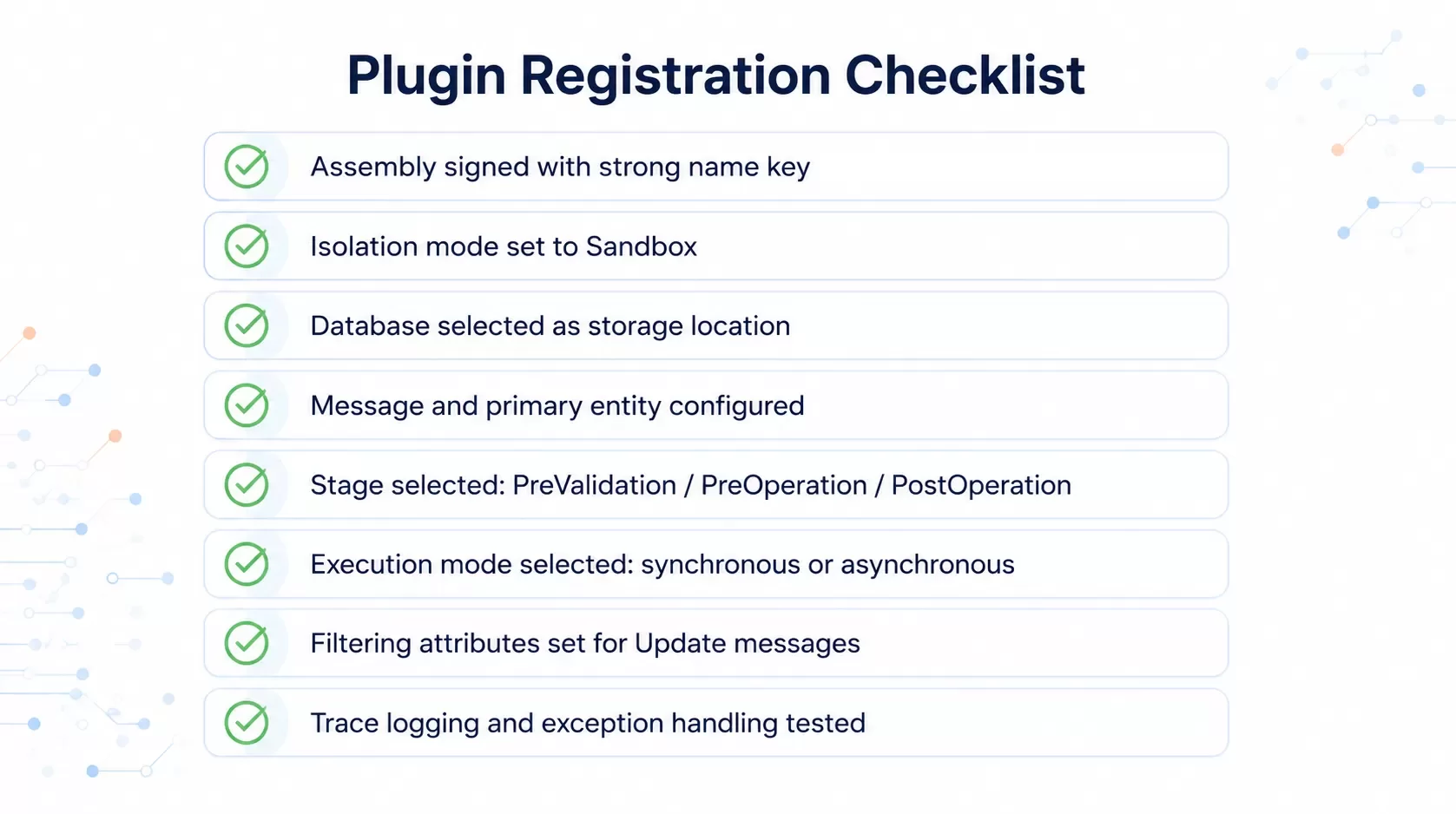
Once your assembly is compiled, you need the plugin registration tool to deploy it. Access the tool by executing the [pac tool prt](https://learn.microsoft.com/en-us/power-apps/developer/data-platform/tutorial-write-plug-in) command through Power Platform CLI[2]. Alternatively, download it from NuGet or use XrmToolBox[9]. Click Create new connection and enter your environment credentials[2]. Leave the Show Advanced checkbox unchecked if your account uses multifactor authentication[2]. Select Register and then New Assembly from the dropdown[2]. Browse to your compiled DLL file and verify the isolation mode is set to sandbox with Database as the storage location[2][10]. After registering the assembly, right-click your plugin class and select Register New Step[2]. Configure the message (Create, Update, Delete), primary entity, event pipeline stage and execution mode[2]. Select PostOperation stage in most scenarios, as PreValidation occurs before security checks[11]. Set filtering attributes when you configure Update message steps to prevent unnecessary executions[1]. The plugin executes every time an update occurs if no filtering attributes are set[1]. Including filtering attributes is recommended to minimize processing and improve performance[1]. You can modify filtering attributes by right-clicking the step and selecting Update later[12].
Test your plugin by performing the configured operation in Dynamics 365[2]. Add your registered assembly to an unmanaged solution to distribute it to other environments[10].
Conclusion
You now have everything you need to write and register your first dynamics plugin. A simple plugin that confirms data or automates a simple task makes a good starting point. Test it really well in a development environment before you deploy it to production. Note that stateless code and proper error handling are essential to ensure reliable plugin performance. Keep practicing with different messages and pipeline stages. Your plugin development skills will improve with time. Your first successful plugin deployment is just a few steps away.
FAQs
A Dynamics 365 plugin is a .NET assembly that extends the platform's capabilities by executing custom business logic when specific events occur. It allows you to automate processes and enforce business rules that standard Dynamics 365 configurations cannot handle alone, running either synchronously or asynchronously on the server.
You need proficiency in C# as plugins are written exclusively in this language. Essential tools include Visual Studio (Professional or Enterprise 2022 recommended), .NET Framework SDK version 4.6.2 or later, and the Microsoft.CrmSdk.CoreAssemblies NuGet package. You'll also need the Plugin Registration Tool for deployment and access to a Dynamics 365 environment for testing.
After compiling your plugin assembly, use the Plugin Registration Tool (accessible via the pac tool prt command or XrmToolBox). Connect to your environment, register the assembly by selecting Register > New Assembly, then browse to your compiled DLL file. After registration, right-click your plugin class and select Register New Step to configure the message, entity, and execution stage.
This typically happens when you accidentally update the version number of the assembly itself during the update process. To prevent this, ensure you're maintaining consistent version numbers when updating existing assemblies. Always verify the assembly version in your project properties matches what's registered in Dynamics 365 before updating.
Filtering attributes specify which fields trigger your plugin during Update operations. Without filtering attributes, the plugin executes every time any update occurs on the entity, which can cause unnecessary processing and performance issues. Setting filtering attributes ensures your plugin only runs when specific fields are modified, improving overall system performance.
Need help with Dynamics 365, CRM customization, or integrations?
Hexagon IT Solutions designs CRM workflows, Dynamics/Dataverse extensions, API integrations, and custom business automation for growing teams.
References
[2] https://learn.microsoft.com/en-us/power-apps/developer/data-platform/tutorial-write-plug-in
[3] https://www.linkedin.com/pulse/how-write-dynamics-365-ce-plugin-ryan-redmond-g5x8c
[4] https://learn.microsoft.com/en-us/power-apps/developer/data-platform/write-plug-in
[5] https://learn.microsoft.com/en-us/dotnet/api/microsoft.xrm.sdk.iplugin?view=dataverse-sdk-latest
[7] https://uds.systems/blog/leveraging-base-classes-for-seamless-d365-crm-plugin-development/
[8] https://learn.microsoft.com/en-us/power-apps/developer/data-platform/handle-exceptions
[9] https://powerstackengineering.com/install-plugin-registration-tool-dynamics-365/
[10] https://learn.microsoft.com/en-us/power-apps/developer/data-platform/register-plug-in
[11] https://learn.microsoft.com/en-us/power-apps/developer/data-platform/event-framework
[12] https://community.dynamics.com/forums/thread/details/?threadid=4a1cc413-1137-47e4-8070-76bdc60f1d28
[13] https://community.dynamics.com/blogs/post/?postid=55e66c6c-1b68-42d0-91e5-9468004572c1
[14] https://www.optrua.com/post/how-to-write-a-dynamics-365-ce-plugin
[16] https://learn.microsoft.com/en-us/power-apps/developer/data-platform/build-and-package


